> ## Documentation Index
> Fetch the complete documentation index at: https://docs.powerdrill.ai/llms.txt
> Use this file to discover all available pages before exploring further.
# Subscriptions and Plans
> Manage your subscriptions and plans for greater cost efficiency
export const community_0 = undefined
***
To enable users in your team to run jobs on Powerdrill Enterprise, you must subscribe to job plans. To increase the capacity of your AI Workspace, you need to subscribe to AI Workspace capacity plans. This guide explains how to manage your subscriptions to maximize cost efficiency.
***
## Subscribe to a plan
### Subscribe to a job plan
Since users in your team can only run jobs after being associated with a pricing plan, it's important to understand the number of users in your team and their estimated job usage.
If you're unsure, no worries. You can subscribe to a plan later as needed. Start with the Tier 1 plan, and when a user exceeds the job quota, you can easily upgrade their plan to meet their requirements.
To subscribe a job plan, perform the following:
1. On the top navigation bar in the Admin console, select **Subscriptions & plans**.
2. On the page that appears, click **Subscribe**.
3. On the **Select plan** page, choose the subscription type, select the plan, and set the number of subscriptions you want to make, and click **Confirm**.
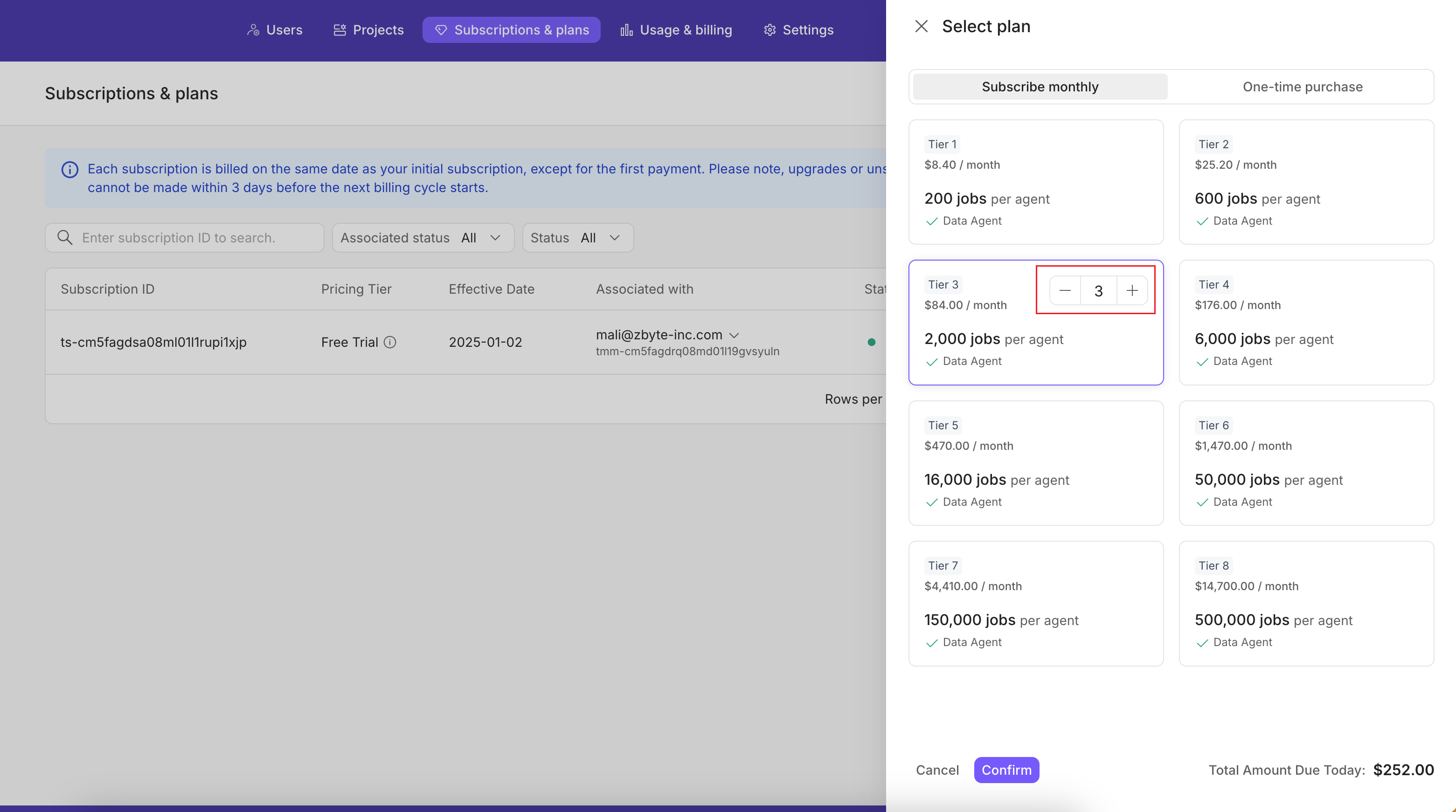 There are two subscription types available:
* **Monthly subscription**: Recurs on a monthly basis.
* **One-time purchase**: Non-recurring and expires after the set period.
When deciding on the number of subscriptions, consider how many users in your team need to run jobs. Ensure that the number of subscriptions matches the number of users in your team.
4. Once the payment is successful, you can manage your subscriptions on the **Subscriptions & plans** page.
### Subscribe to a Workspace capacity plan
Each team receives 100 MB of free Workspace capacity upon creation. If your team's needs exceed this capacity, you can subscribe to a paid plan.
1. In the Admin console, select **Usage & billing** from the top navigation bar.
2. In the **Workspace capacity** section, click **Upgrade**.
There are two subscription types available:
* **Monthly subscription**: Recurs on a monthly basis.
* **One-time purchase**: Non-recurring and expires after the set period.
When deciding on the number of subscriptions, consider how many users in your team need to run jobs. Ensure that the number of subscriptions matches the number of users in your team.
4. Once the payment is successful, you can manage your subscriptions on the **Subscriptions & plans** page.
### Subscribe to a Workspace capacity plan
Each team receives 100 MB of free Workspace capacity upon creation. If your team's needs exceed this capacity, you can subscribe to a paid plan.
1. In the Admin console, select **Usage & billing** from the top navigation bar.
2. In the **Workspace capacity** section, click **Upgrade**.
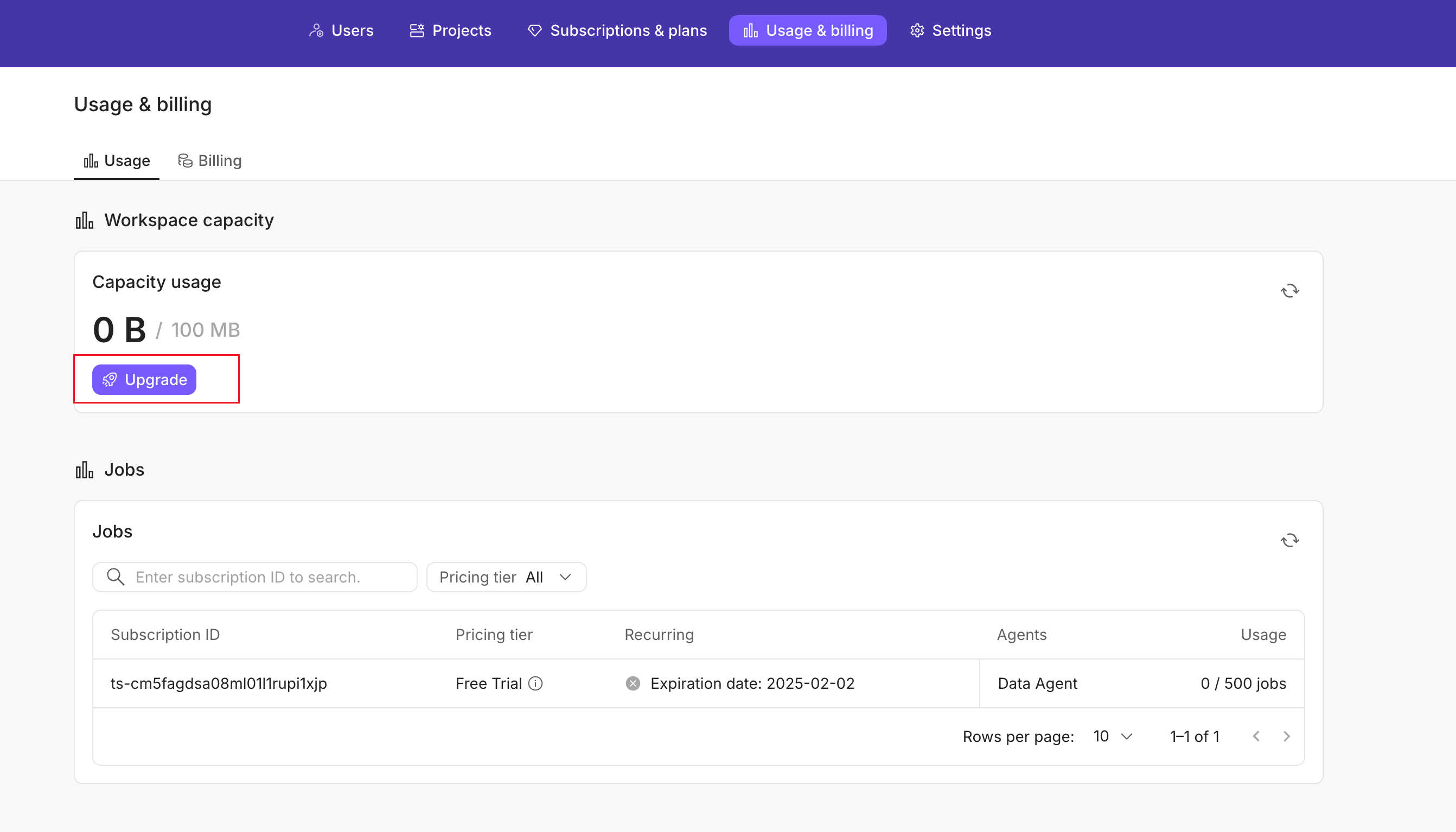 3. On the **Select capacity plan** page, choose your desired plan and click **Upgrade**.
Since your team shares the same pool of Workspace capacity (not tied to user or project), only one subscription to the target plan is needed.
4. After the payment is processed, you can manage your subscriptions on the **Subscriptions & plans** page.
***
## Manage your subscriptions
### Manage your job subscriptions
You can manage your job plan subscriptions on the **Subscriptions & plans** page.
Once on the **Subscriptions & plans** page, you'll be able to view all your active job plan subscriptions.
3. On the **Select capacity plan** page, choose your desired plan and click **Upgrade**.
Since your team shares the same pool of Workspace capacity (not tied to user or project), only one subscription to the target plan is needed.
4. After the payment is processed, you can manage your subscriptions on the **Subscriptions & plans** page.
***
## Manage your subscriptions
### Manage your job subscriptions
You can manage your job plan subscriptions on the **Subscriptions & plans** page.
Once on the **Subscriptions & plans** page, you'll be able to view all your active job plan subscriptions.
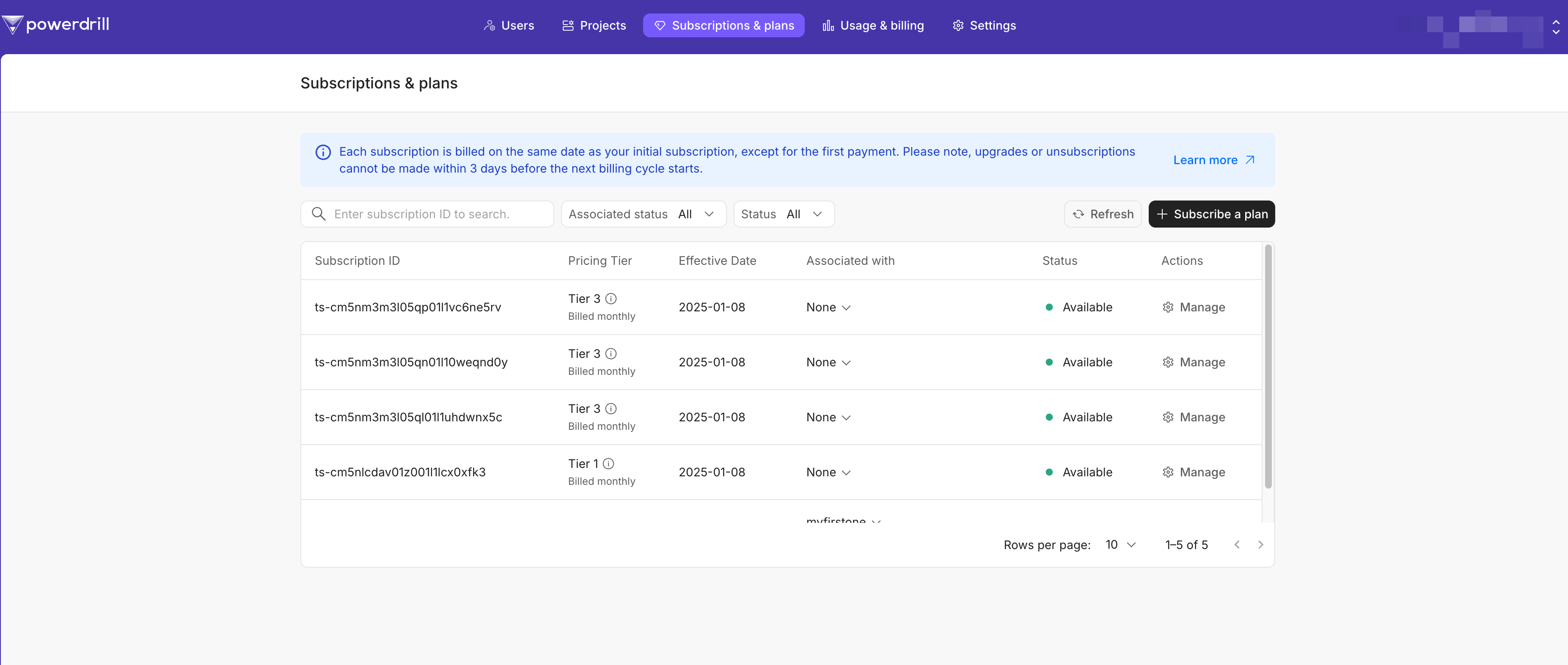 Parameter description:
* **Subscription ID**: The unique identifier for the subscription.
* **Pricing tier**: The subscribed pricing tier.
* **Effective date**: The date when the subscription becomes active.
* **Associated with**: The user to whom the subscription is assigned. If marked as **None**, it indicates that the subscription is not associated with any user. You can click the Expand icon to link the subscription to the desired user.
Parameter description:
* **Subscription ID**: The unique identifier for the subscription.
* **Pricing tier**: The subscribed pricing tier.
* **Effective date**: The date when the subscription becomes active.
* **Associated with**: The user to whom the subscription is assigned. If marked as **None**, it indicates that the subscription is not associated with any user. You can click the Expand icon to link the subscription to the desired user.
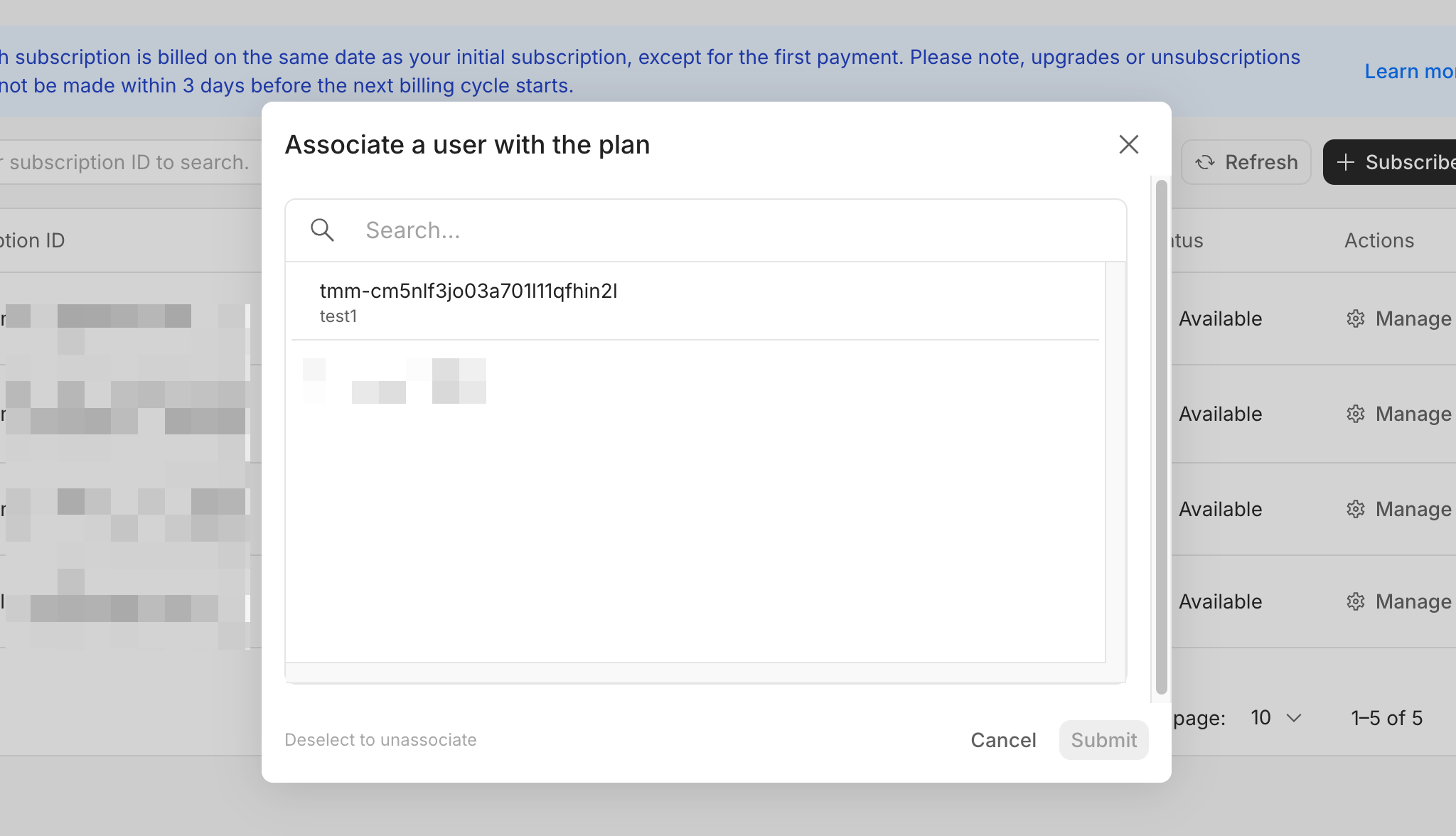 * **Status**: Whether the subscription is available.
* **Actions**: Manage each subscription. Supported actions include:
* **Associate**: Associate the subscription with a user.
* **Unsubcribe**: Cancel the supcription. Unavailable for the free plan subscription and one-time purchase.
* **Resume**: Reactivate the subscription. This option is available only if the subscription was previously canceled and has not expired.
### Manage your Workspace capacity subscription
You can manage your subscription to Workspace capacity plan on the **Usage & billing** page.
When your Workspace capacity is insufficient, you can:
* Click **Subscribe** in the **Workspace capacity** section to choose a paid plan.
* Click **Upgrade** in the **Workspace capacity** section to upgrade to a higher capacity plan.
If you no longer need a paid plan, click **Unsubcribe** to switch to the free 100 MB Workspace capacity.
After unsubscribing from a paid Workspace plan, no new data can be uploaded once the current subscription expires. To upload more data, you'll need to manually reduce the data in your organization to below 100 MB.
***
## Need more help?
Get answers from our {community_0} members
Tell us more and we'll help you out
* **Status**: Whether the subscription is available.
* **Actions**: Manage each subscription. Supported actions include:
* **Associate**: Associate the subscription with a user.
* **Unsubcribe**: Cancel the supcription. Unavailable for the free plan subscription and one-time purchase.
* **Resume**: Reactivate the subscription. This option is available only if the subscription was previously canceled and has not expired.
### Manage your Workspace capacity subscription
You can manage your subscription to Workspace capacity plan on the **Usage & billing** page.
When your Workspace capacity is insufficient, you can:
* Click **Subscribe** in the **Workspace capacity** section to choose a paid plan.
* Click **Upgrade** in the **Workspace capacity** section to upgrade to a higher capacity plan.
If you no longer need a paid plan, click **Unsubcribe** to switch to the free 100 MB Workspace capacity.
After unsubscribing from a paid Workspace plan, no new data can be uploaded once the current subscription expires. To upload more data, you'll need to manually reduce the data in your organization to below 100 MB.
***
## Need more help?
Get answers from our {community_0} members
Tell us more and we'll help you out