> ## Documentation Index
> Fetch the complete documentation index at: https://docs.powerdrill.ai/llms.txt
> Use this file to discover all available pages before exploring further.
# Quick Start
> Get started with Powerdrill Enterprise
This guide will walk you through the essential steps to set up your team, associate your user with a subscription, and generate an API key for your project. Whether you're an admin or a developer, you'll be up and running in just a few minutes.
## Step 1. Create a team
1. Sign in to Powerdrill.
2. Click your profile icon in the lower-left corner.
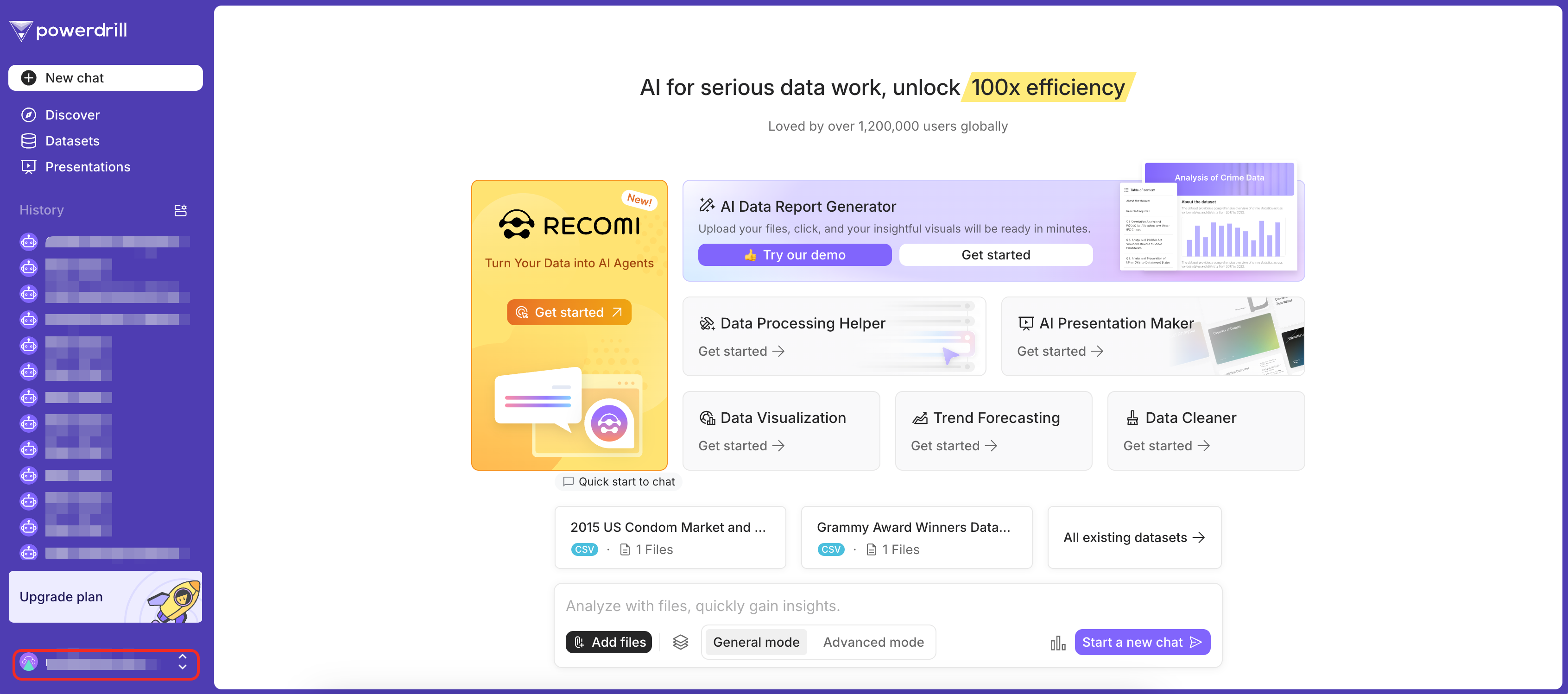 3. In the menu, go to the **Workspace** section and click **Create team**.
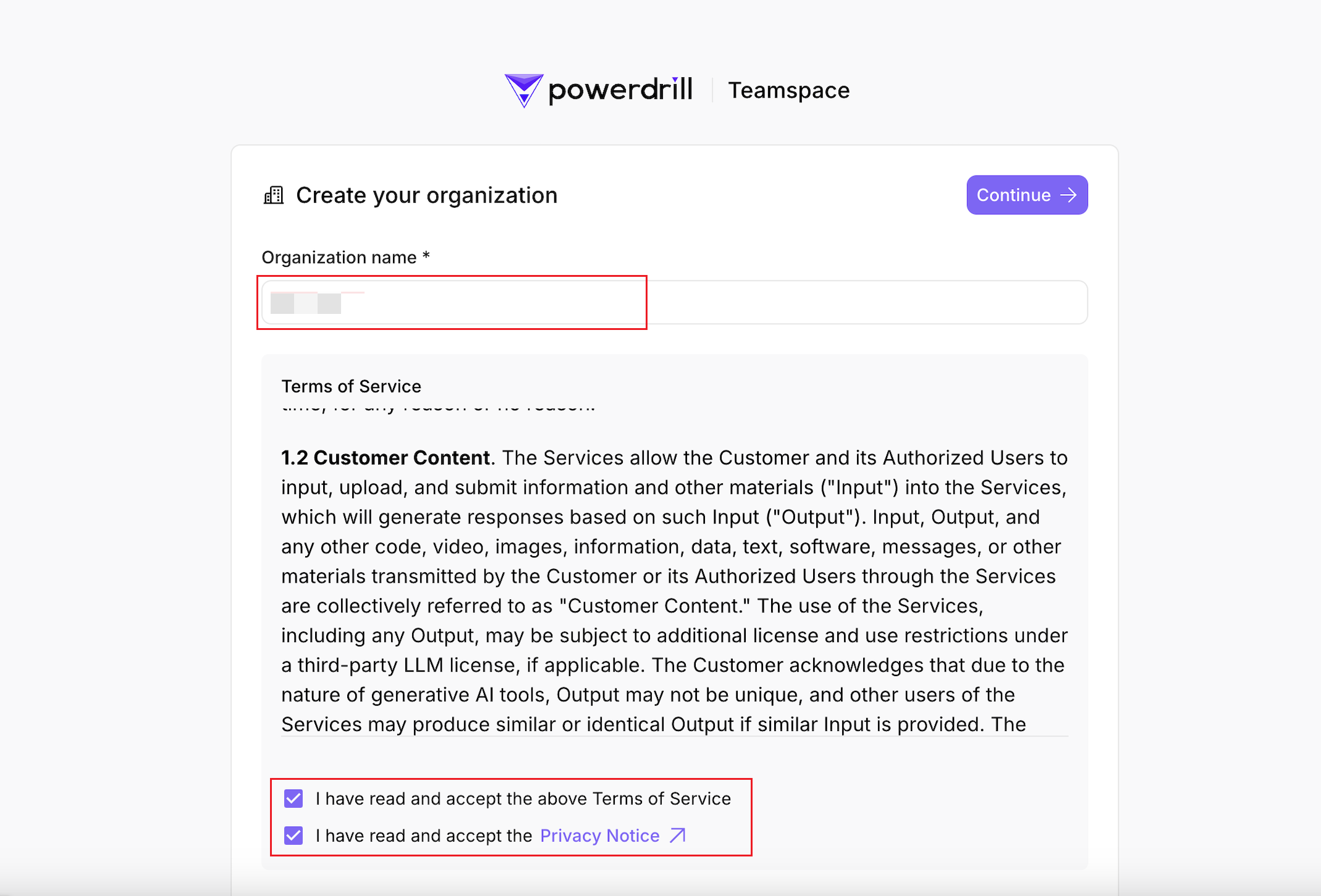
4. Enter your organization name, agree to the *Terms of Service* and *Privacy Policy*, and click **Continue**.
3. In the menu, go to the **Workspace** section and click **Create team**.
4. Enter your organization name, agree to the *Terms of Service* and *Privacy Policy*, and click **Continue**.
 5. Choose a pricing plan and set up payment, or skip this step and subscribe later.
After creating your team, you'll be redirected to its admin console. A default project is automatically created.
## Step 2. Associate your user ID with a subscription
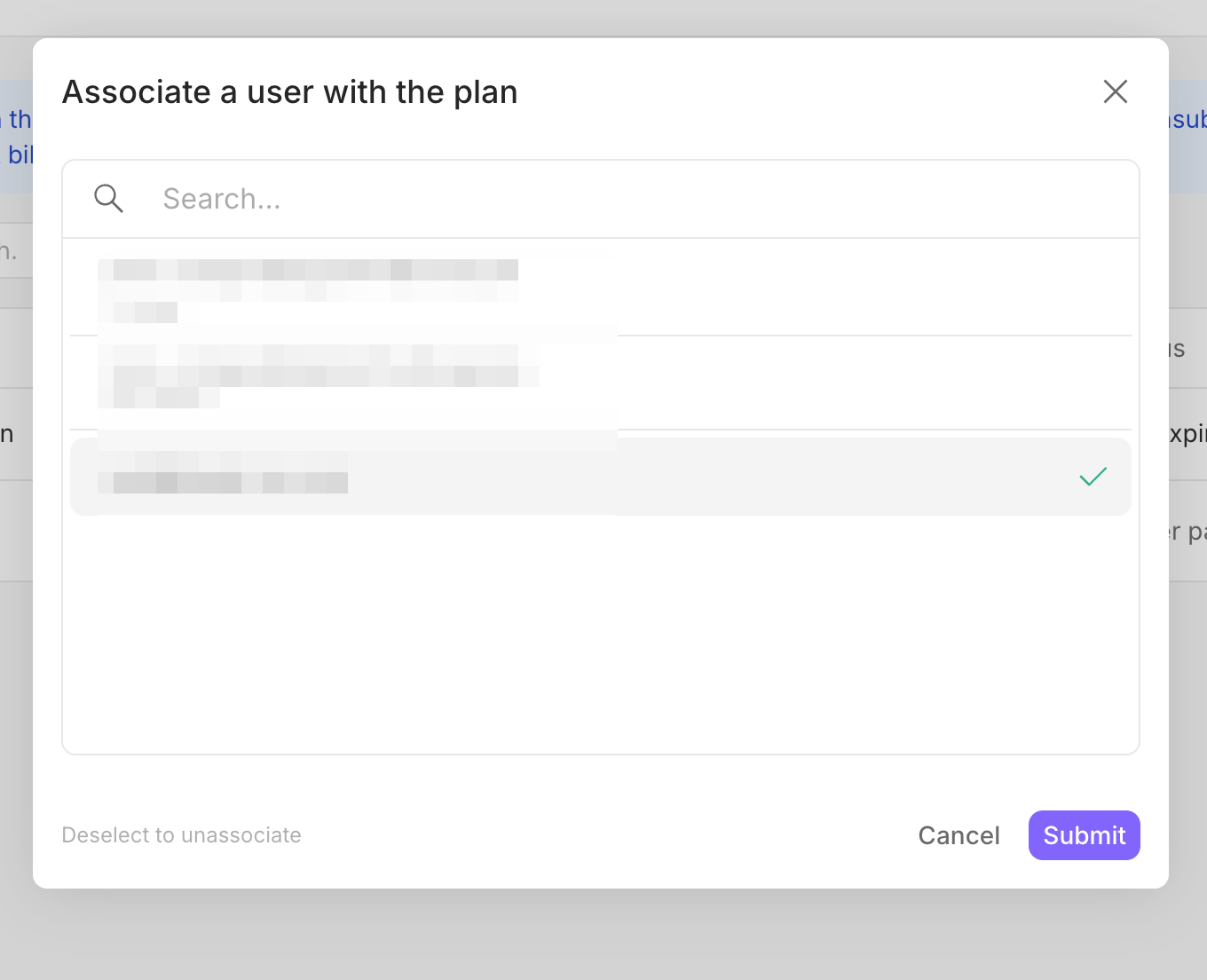
1. From the top navigation bar, select **Subscriptions & plans**.
2. In the target subscription row, click the value in the **Associated with** column.
3. In the dialog box that is displayed, select your user ID and click **Submit**.
5. Choose a pricing plan and set up payment, or skip this step and subscribe later.
After creating your team, you'll be redirected to its admin console. A default project is automatically created.
## Step 2. Associate your user ID with a subscription
1. From the top navigation bar, select **Subscriptions & plans**.
2. In the target subscription row, click the value in the **Associated with** column.
3. In the dialog box that is displayed, select your user ID and click **Submit**.
 ## (Optional) Step 3. Get your API key of the target project
If you want to use Powerdrill Enterprise Open API, this step is mandatory.
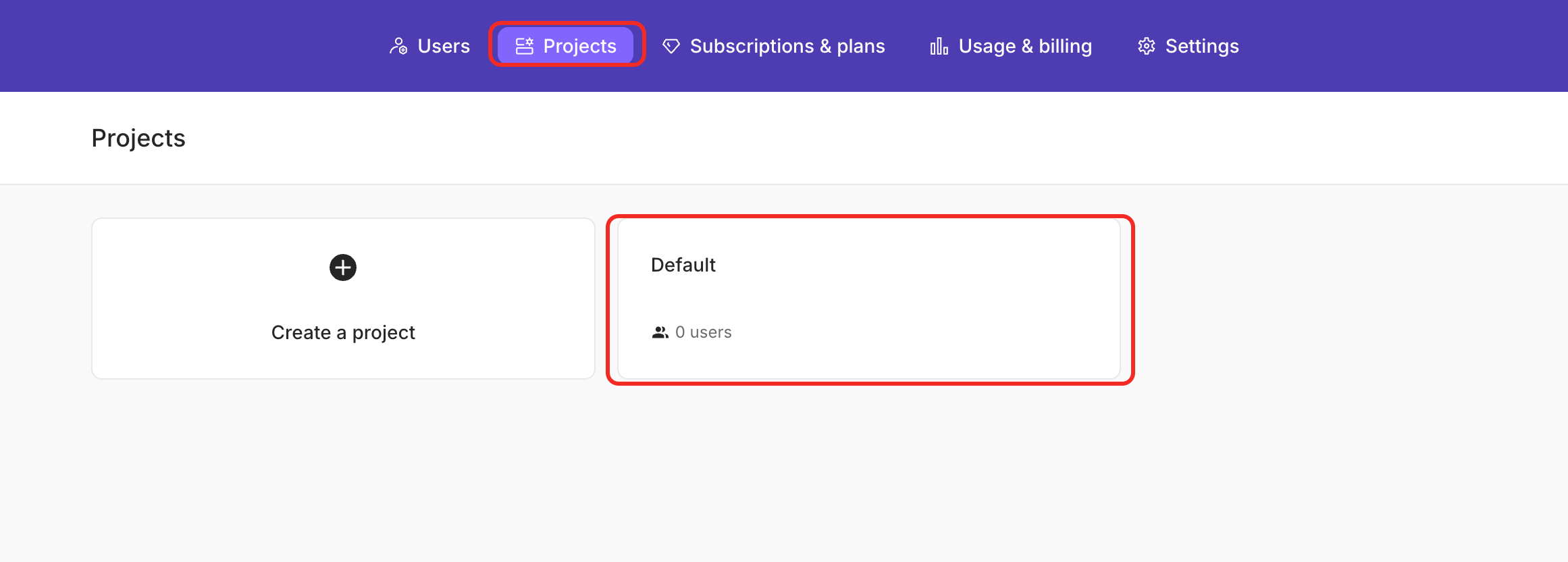
1. Choose **Projects** from the top navigation bar.
2. Click the **Default** project info card.
## (Optional) Step 3. Get your API key of the target project
If you want to use Powerdrill Enterprise Open API, this step is mandatory.
1. Choose **Projects** from the top navigation bar.
2. Click the **Default** project info card.
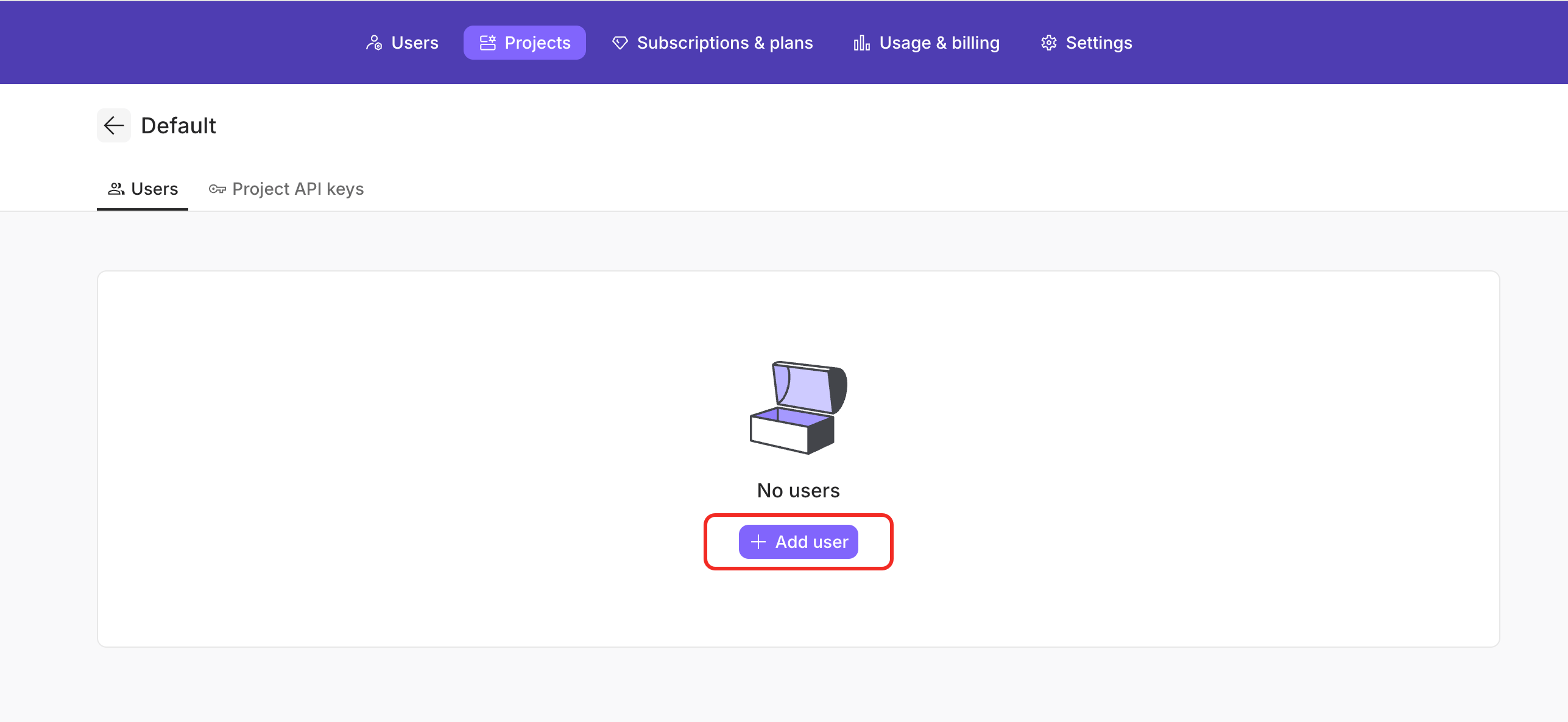
 3. On the **Users** tab that is displayed by default, click **Add user**.
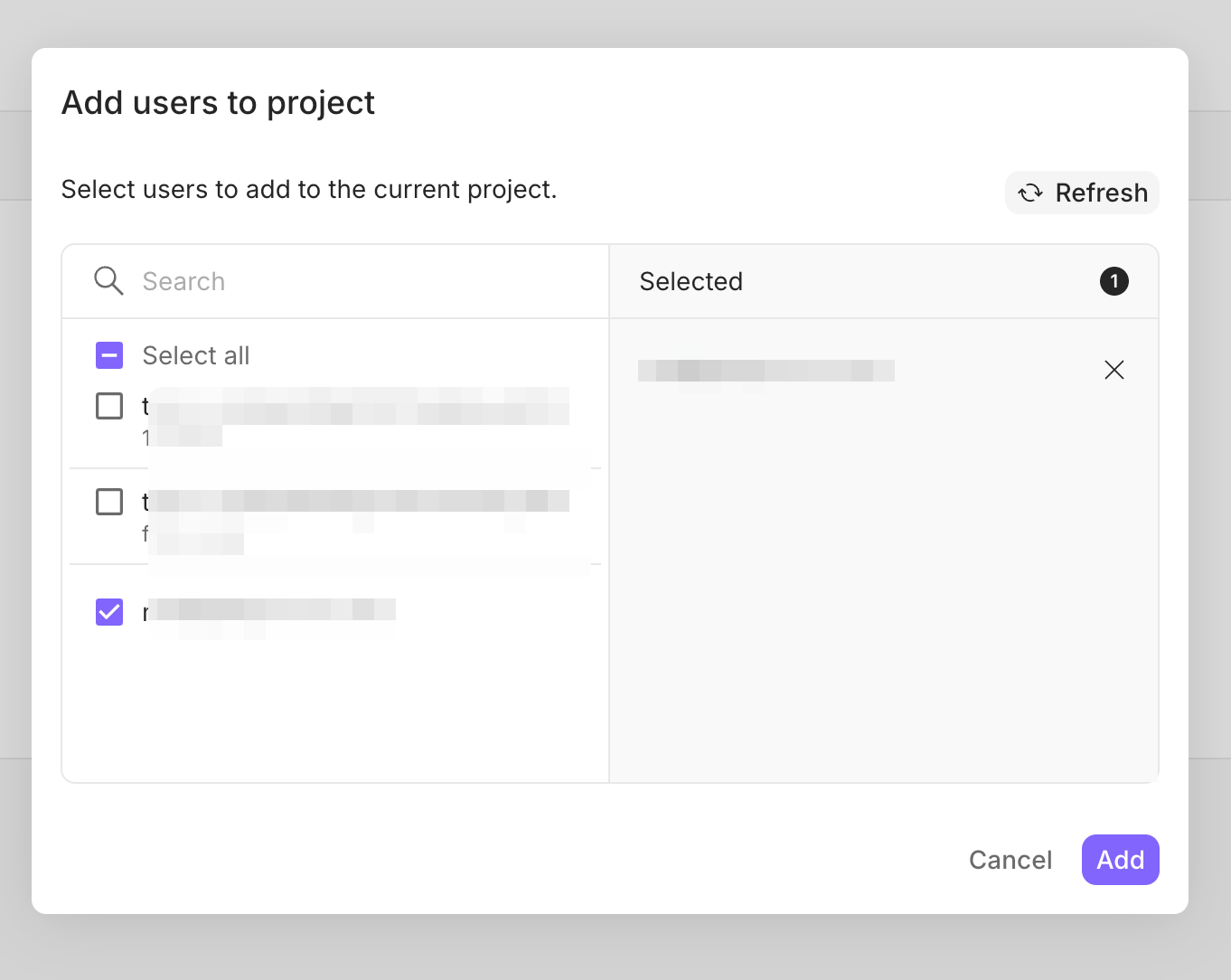
 4. In the dialog box that is displayed, select your user ID and click **Add**.
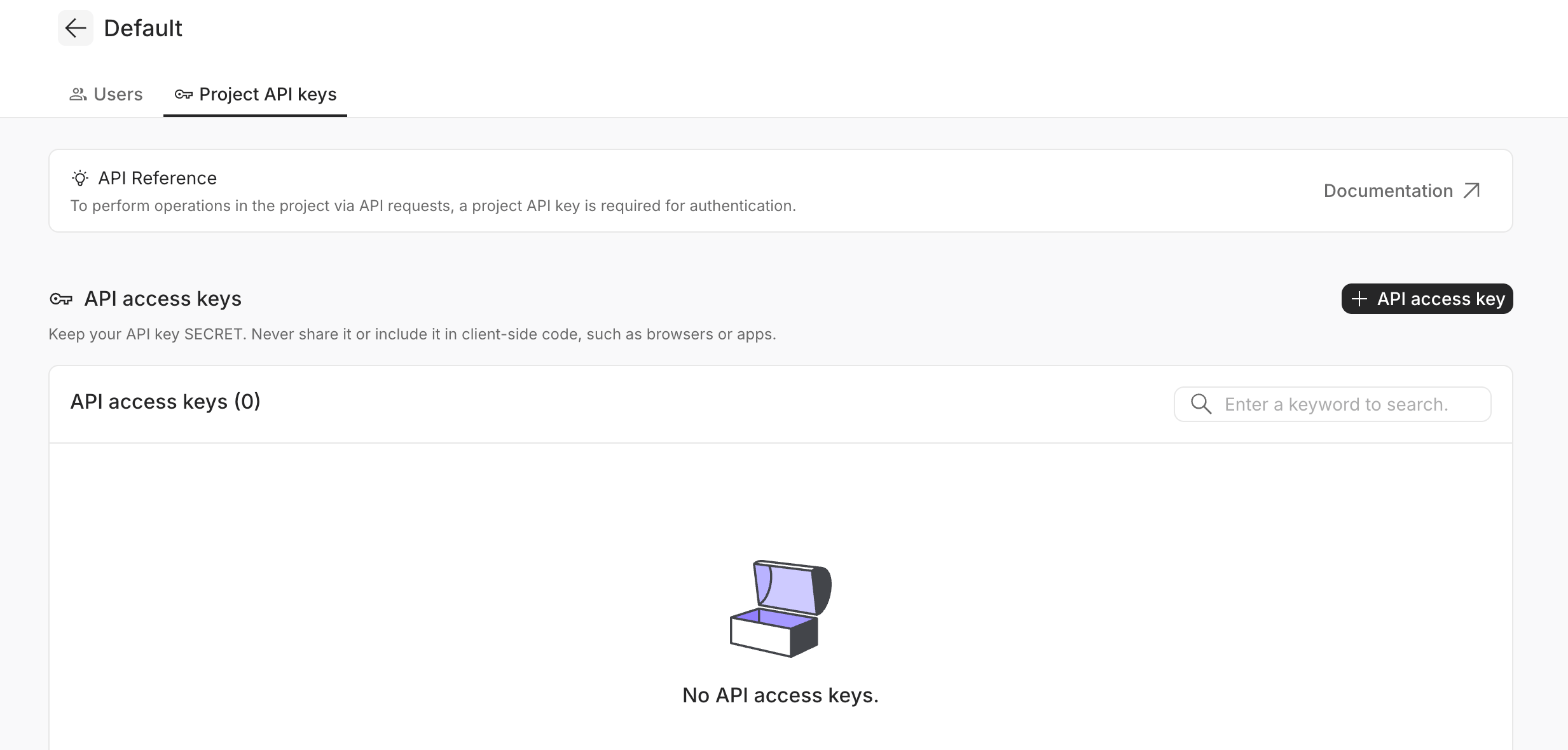
 5. Click the **Project API keys** tab and click the **+ API access key** button.
 6. In the dialog box that is displayed, set a name and click **Create**.
7. Copy and save your API key properly and click **I have saved my secret key** to finish the creation.
## Step 4. Use Powerdrill Enterprise to run data jobs
To run data jobs on your personal space:
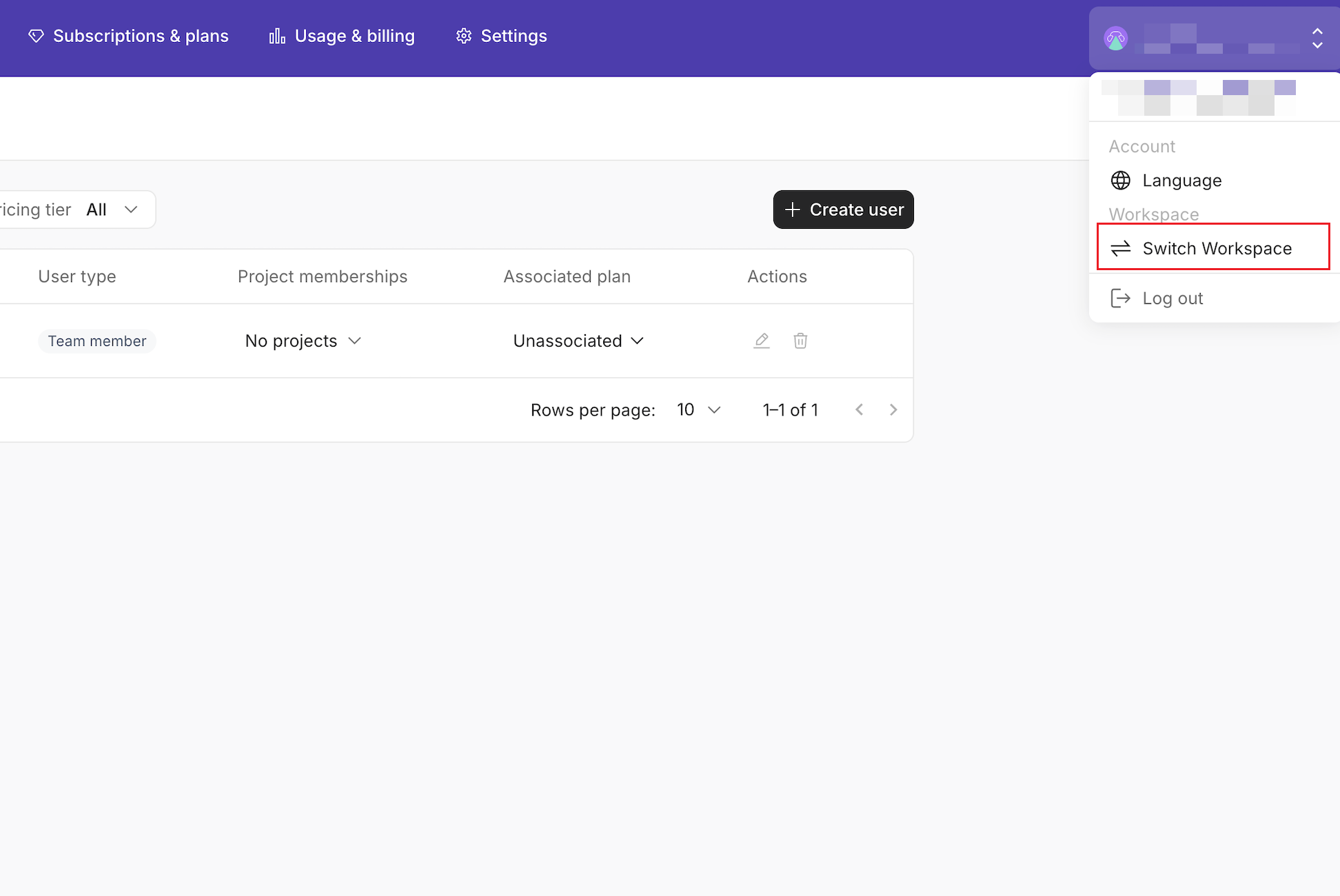
1. Click your profile icon on the upper-right corner of the page and click **Switch Workspace**.
6. In the dialog box that is displayed, set a name and click **Create**.
7. Copy and save your API key properly and click **I have saved my secret key** to finish the creation.
## Step 4. Use Powerdrill Enterprise to run data jobs
To run data jobs on your personal space:
1. Click your profile icon on the upper-right corner of the page and click **Switch Workspace**.
 2. On the page that appears, click the **My personal space** card.
3. Upload your data and start exploring it.
To call Open API, refer to [API Reference](/api-reference/v2/overview.mdx).
2. On the page that appears, click the **My personal space** card.
3. Upload your data and start exploring it.
To call Open API, refer to [API Reference](/api-reference/v2/overview.mdx).