> ## Documentation Index
> Fetch the complete documentation index at: https://docs.powerdrill.ai/llms.txt
> Use this file to discover all available pages before exploring further.
# Projects
> This guide introduces how to create and manage projects in your organization
export const community_0 = undefined
## What is a project?
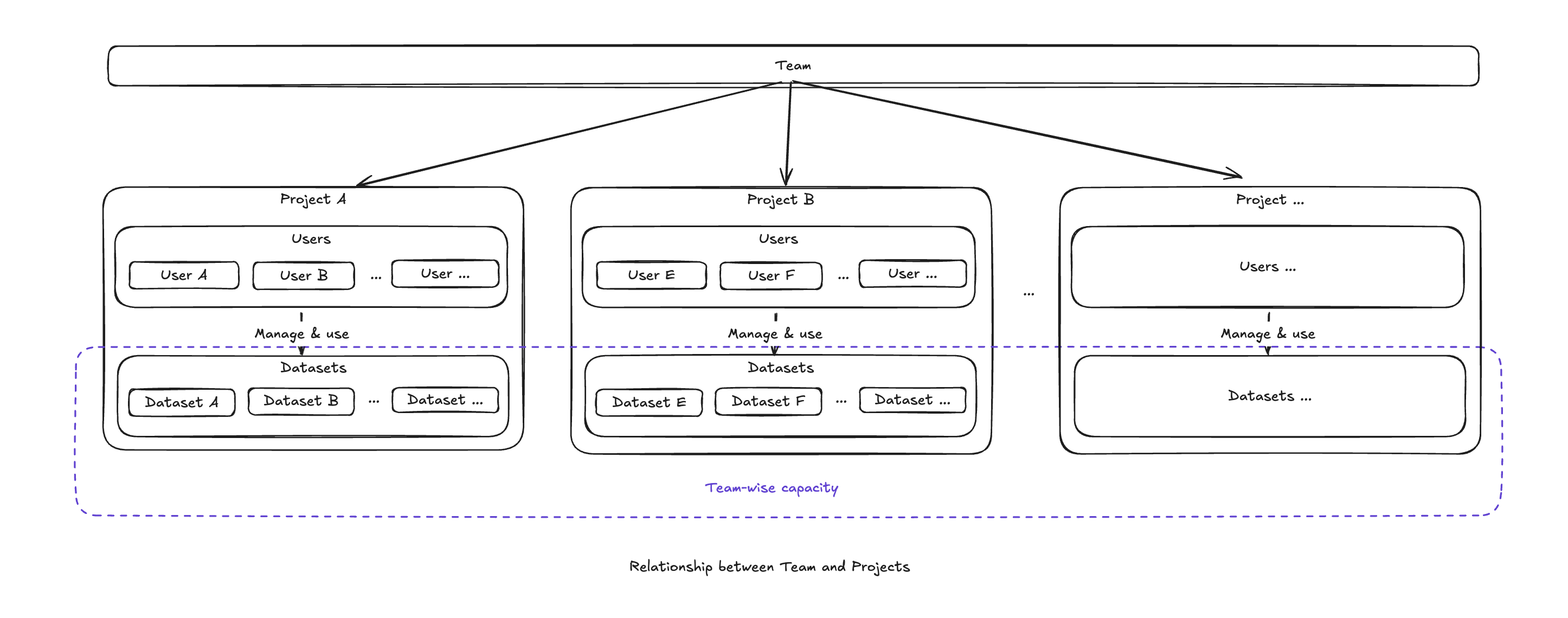
Projects are focused, purpose-driven groups within your organization. You can create multiple projects based on your specific needs.
While all projects share the same pool of Workspace capacity, each project functions as a data-isolated environment. This means datasets created in one project are inaccessible to other projects, enabling you to maintain granular control over data security and ensure clear boundaries between projects.
 ***
## Create a project
1. Sign in to Powerdrill.
2. Click your profile icon in the lower-left corner.
3. In the menu, go to the **Workspace** section and click **Switch Workspace**.
***
## Create a project
1. Sign in to Powerdrill.
2. Click your profile icon in the lower-left corner.
3. In the menu, go to the **Workspace** section and click **Switch Workspace**.
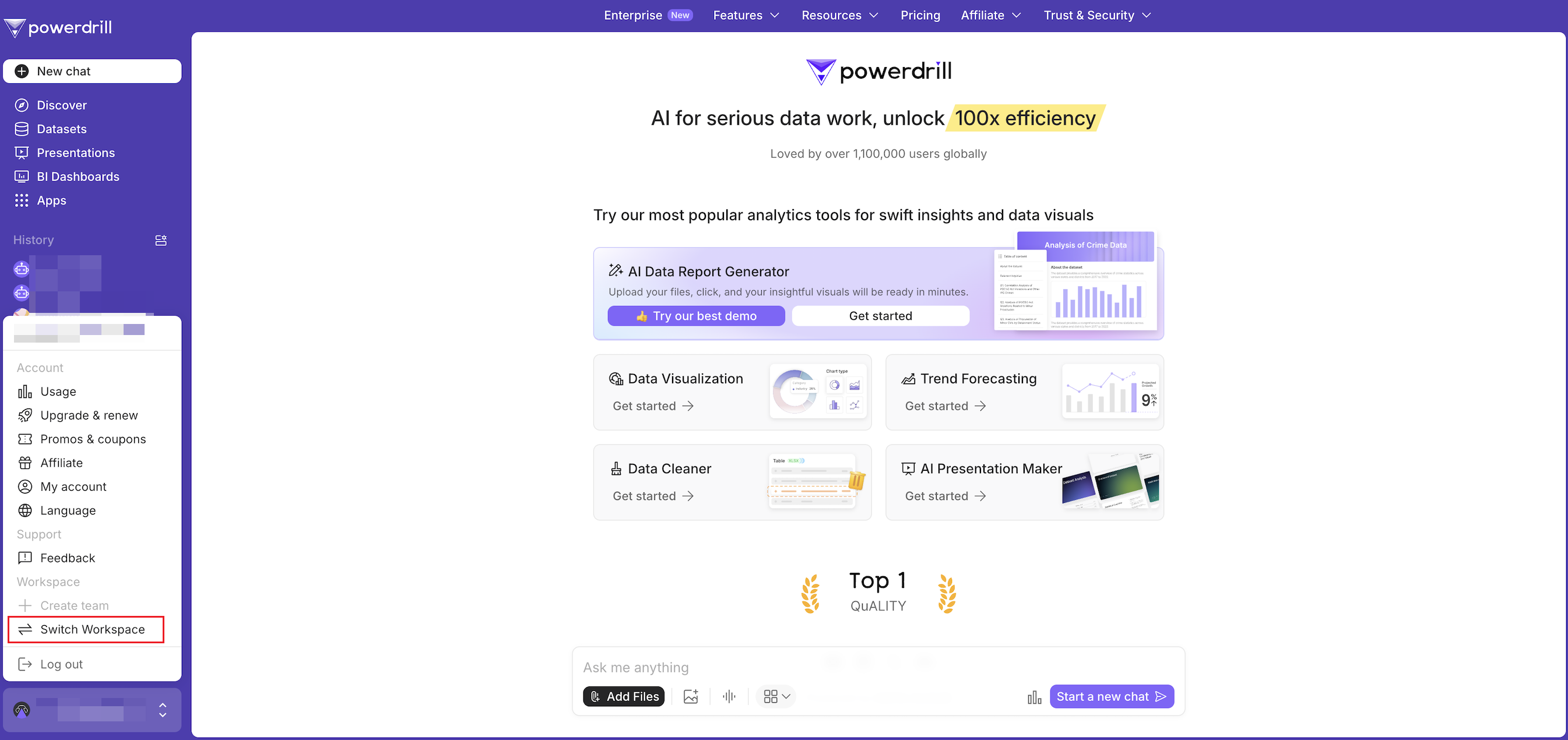 A list of all the workspaces you're in will appear.
4. Click the **Admin console** next to the team that you own.
A list of all the workspaces you're in will appear.
4. Click the **Admin console** next to the team that you own.
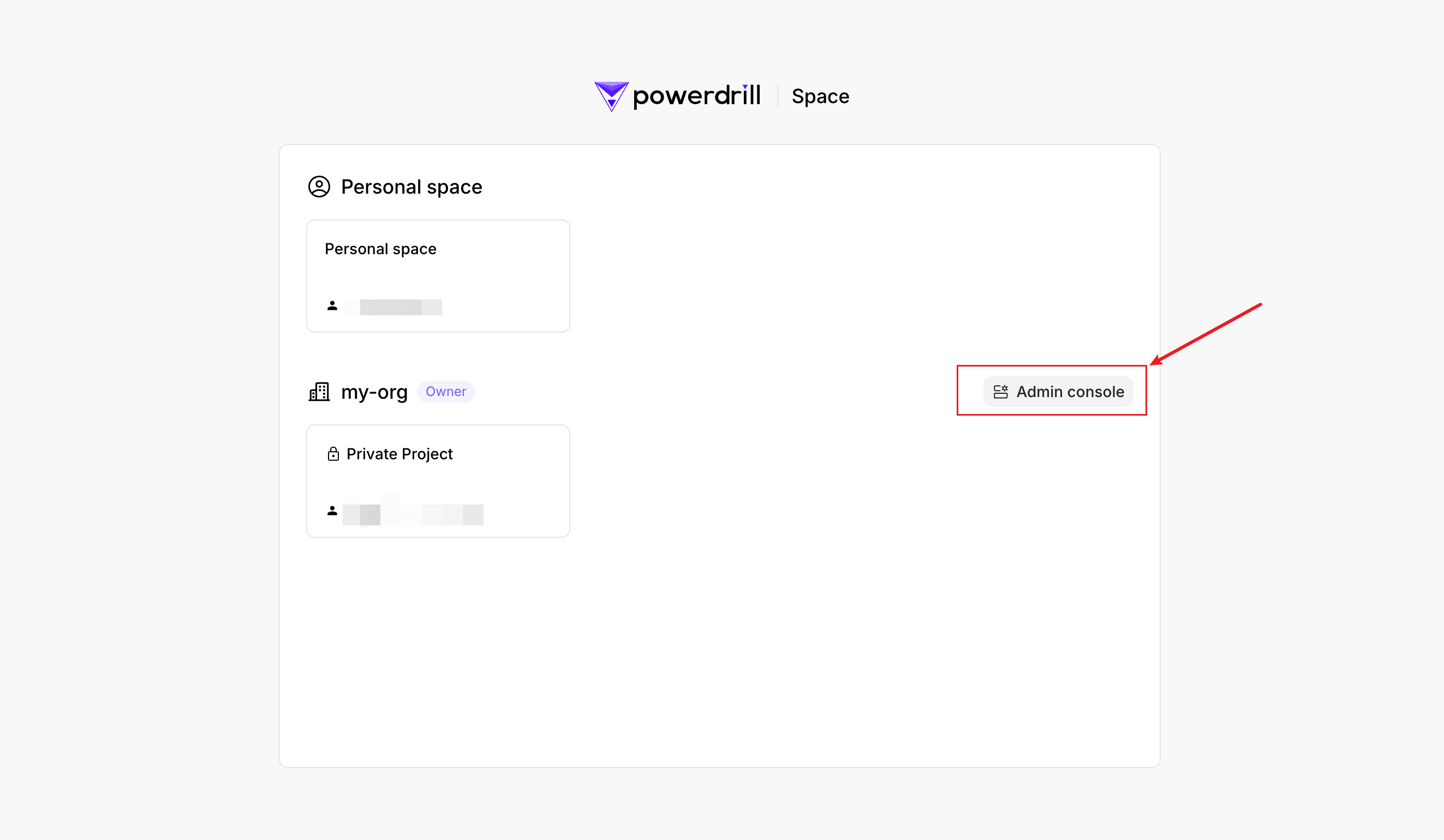 5. On the top navigation bar, select **Projects**. On the **Projects** page, click **Create a project**.
 6. Set the project name and click **Create**.
Now you can add users or manage API keys to control access to your project's resources.
***
## Manage project members
You can manage the members in each project on the Admin console.
### Add a user to a project
You can add users to a project so that they can collaborate in the project.
1. In the Admin console, click **Projects** in the top navigation bar.
2. Select the target project from the project list.
3. On the **Users** tab of the project details page, click **Add user**.
6. Set the project name and click **Create**.
Now you can add users or manage API keys to control access to your project's resources.
***
## Manage project members
You can manage the members in each project on the Admin console.
### Add a user to a project
You can add users to a project so that they can collaborate in the project.
1. In the Admin console, click **Projects** in the top navigation bar.
2. Select the target project from the project list.
3. On the **Users** tab of the project details page, click **Add user**.
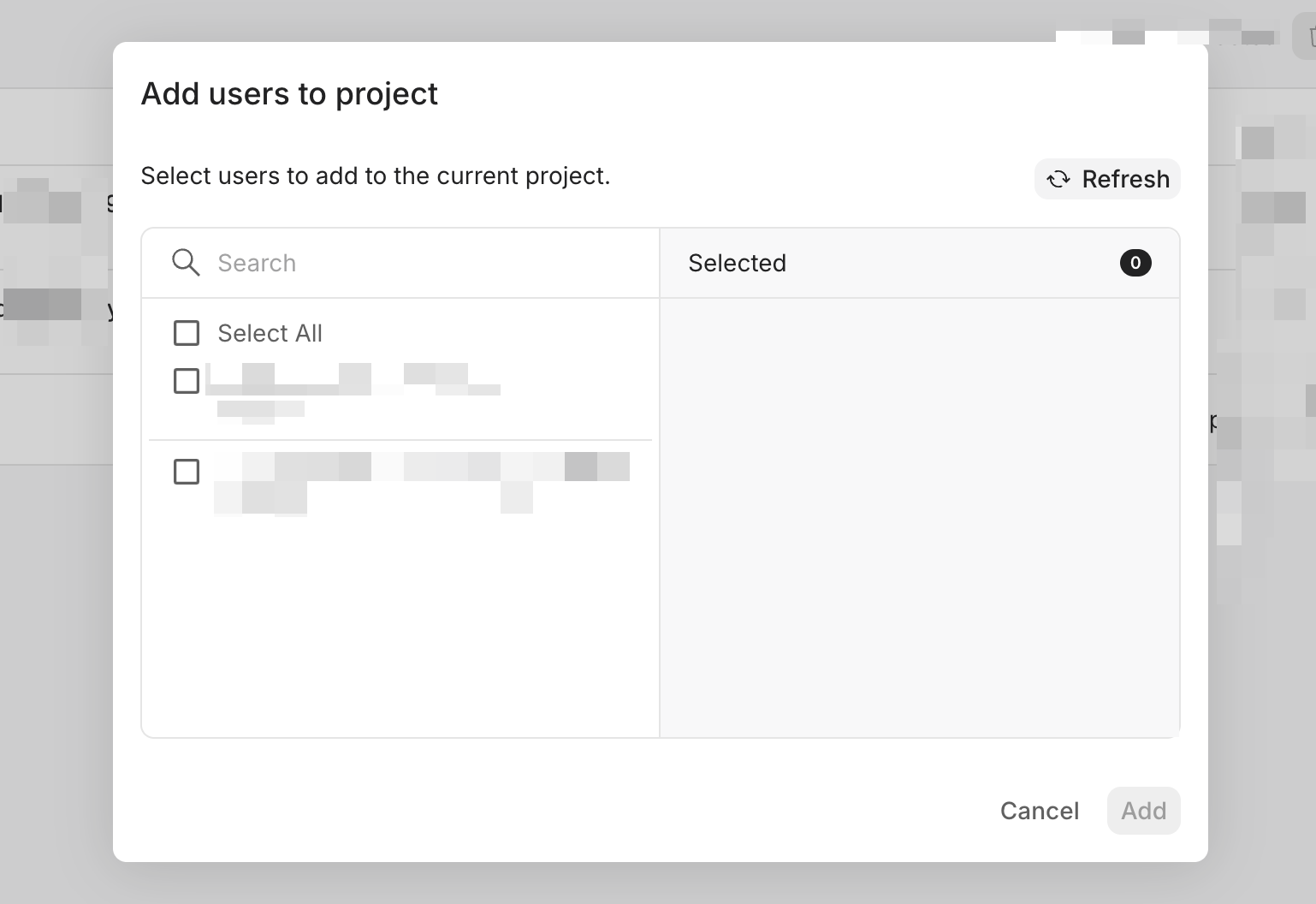
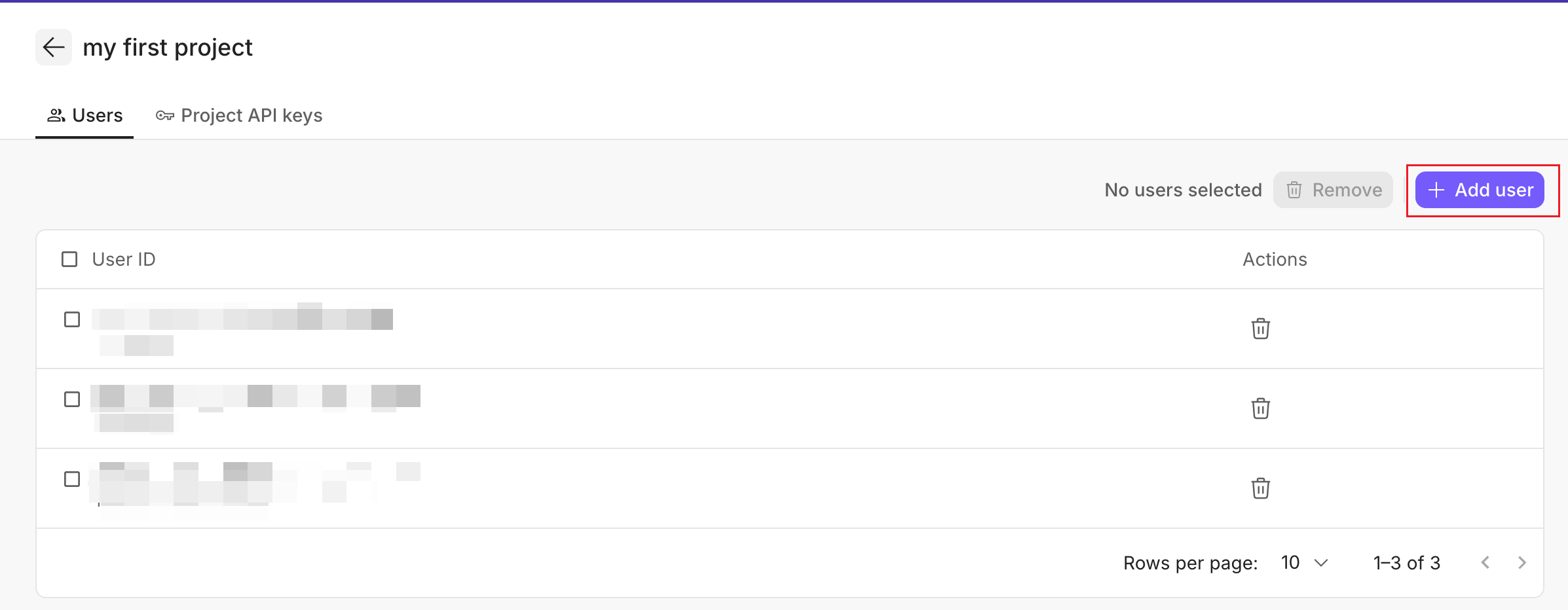 4. In the dialog box that appears, select the users you want to add and click **Add**.
 ### Remove users from your project
You can remove unnecessary members from your project to enhance data security. Removed users will no longer have access to the project's datasets for running data analysis jobs.
1. In the Admin console, click **Projects** in the top navigation bar.
2. Select the target project from the project list.
3. On the **Users** tab of the project details page, locate the user you want to remove and click the Delete icon in the **Actions** column.
To remove multiple users at a batch, select the checkboxes next to the IDs of the users you want to remove.
4. In the confirmation dialog that appears, click **Yes, remove**.
***
## Manage project API keys
**Create a project API key**:
1. In the Admin Console, click **Projects** in the top navigation bar.
2. Select the target project from the project list.
3. On the project details page, click the **Project API keys** tab.
4. Click **+ API access key**.
5. In the dialog box that appears, enter a name for the API key and click **Create**.
6. Copy the generated secret key, save it securely, and click **I have saved my secret key**.
Please save the secret key properly, as it is displayed only once. If you lose it, you can only create a new one.
**Delete a project API key**:
1. In the Admin Console, click **Projects** in the top navigation bar.
2. Select the target project from the project list.
3. On the project details page, click the **Project API keys** tab.
4. In the list of API keys, locate the unnecessary project API key, click the Delete icon in the **Actions** column.
5. In the dialog box that appears, click **Yes, revoke** to confirm the deletion.
***
## FAQ
### Can I delete unnecessary projects?
No. Currently you cannot delete projects from your team.
### What's the difference between project API keys and team API keys?
They serve for different purposes.
* **Project API keys**: Obtained from the **Projects** page, they are used for authenticating operations to resources within specific projects.
* **Team API keys**: Obtained from the **Settings** page, they are used for authenticating actions related to creating or modifying projects within your team.
### How do I manage datasets and data sources in a project?
1. Click your profile icon, and click **Switch Workspace**.
2. Click the project card to enter the project. Then, you will see the homepage of the project.
### Remove users from your project
You can remove unnecessary members from your project to enhance data security. Removed users will no longer have access to the project's datasets for running data analysis jobs.
1. In the Admin console, click **Projects** in the top navigation bar.
2. Select the target project from the project list.
3. On the **Users** tab of the project details page, locate the user you want to remove and click the Delete icon in the **Actions** column.
To remove multiple users at a batch, select the checkboxes next to the IDs of the users you want to remove.
4. In the confirmation dialog that appears, click **Yes, remove**.
***
## Manage project API keys
**Create a project API key**:
1. In the Admin Console, click **Projects** in the top navigation bar.
2. Select the target project from the project list.
3. On the project details page, click the **Project API keys** tab.
4. Click **+ API access key**.
5. In the dialog box that appears, enter a name for the API key and click **Create**.
6. Copy the generated secret key, save it securely, and click **I have saved my secret key**.
Please save the secret key properly, as it is displayed only once. If you lose it, you can only create a new one.
**Delete a project API key**:
1. In the Admin Console, click **Projects** in the top navigation bar.
2. Select the target project from the project list.
3. On the project details page, click the **Project API keys** tab.
4. In the list of API keys, locate the unnecessary project API key, click the Delete icon in the **Actions** column.
5. In the dialog box that appears, click **Yes, revoke** to confirm the deletion.
***
## FAQ
### Can I delete unnecessary projects?
No. Currently you cannot delete projects from your team.
### What's the difference between project API keys and team API keys?
They serve for different purposes.
* **Project API keys**: Obtained from the **Projects** page, they are used for authenticating operations to resources within specific projects.
* **Team API keys**: Obtained from the **Settings** page, they are used for authenticating actions related to creating or modifying projects within your team.
### How do I manage datasets and data sources in a project?
1. Click your profile icon, and click **Switch Workspace**.
2. Click the project card to enter the project. Then, you will see the homepage of the project.
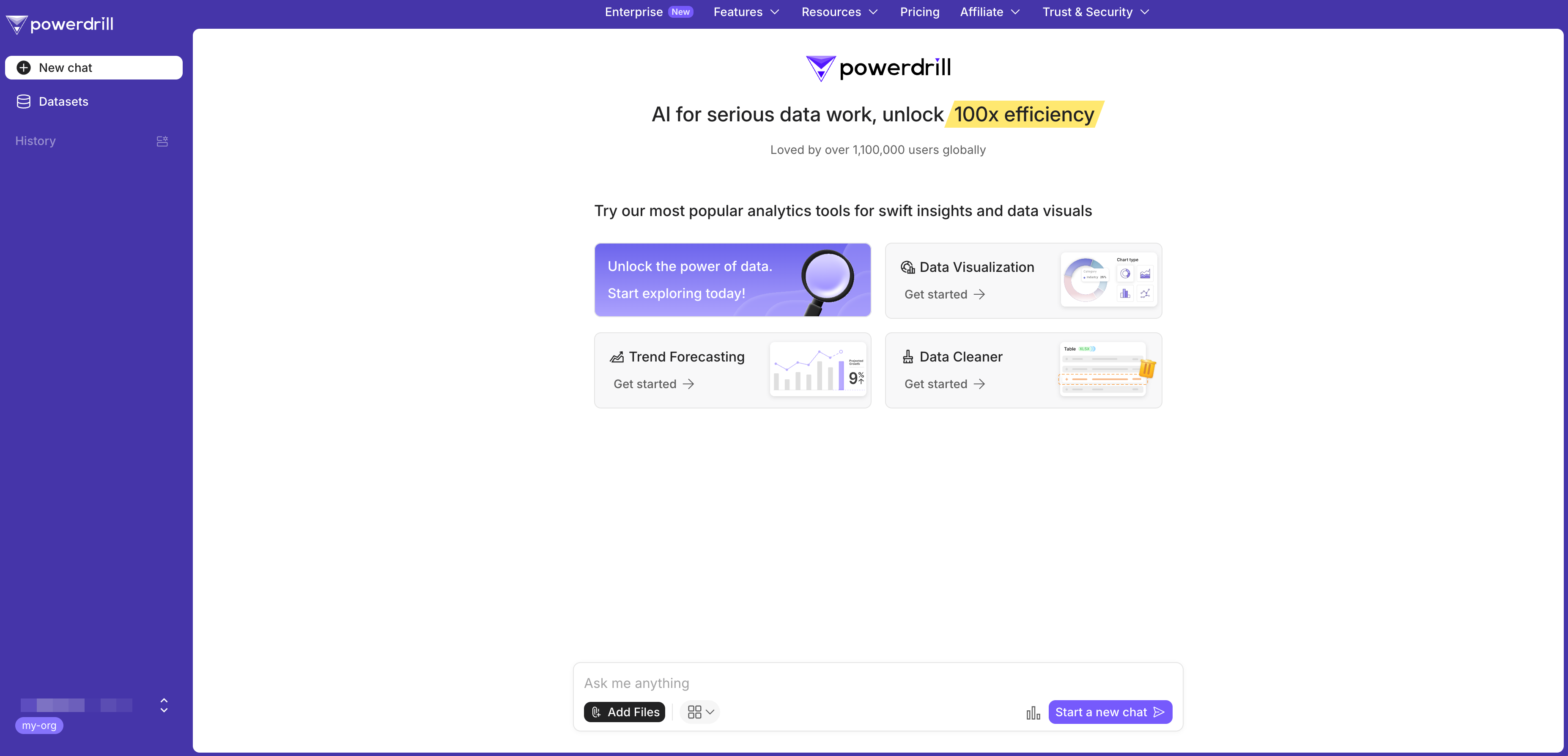 3. In the left sidebar, select **Datasets**. From there, you can manage your datasets and data sources in each dataset as needed.
***
## Need more help?
Get answers from our {community_0} members
Tell us more and we'll help you out
3. In the left sidebar, select **Datasets**. From there, you can manage your datasets and data sources in each dataset as needed.
***
## Need more help?
Get answers from our {community_0} members
Tell us more and we'll help you out